Vlog AI: Photo to Video
Fire Elite TeamArt & Design
3.9165.00 Reviews
- Version
- 2.1.6
- Installs
- 100.00K
- Age Rating
- Teen
Screenshots
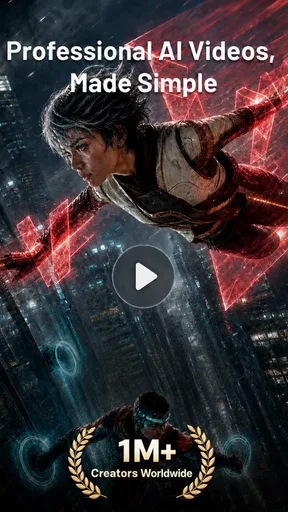
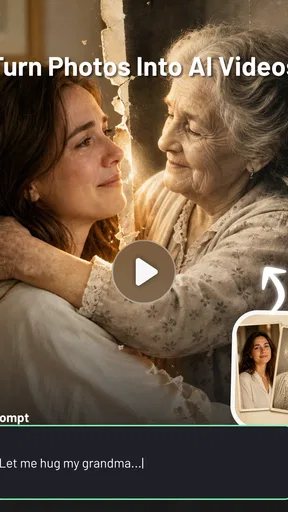
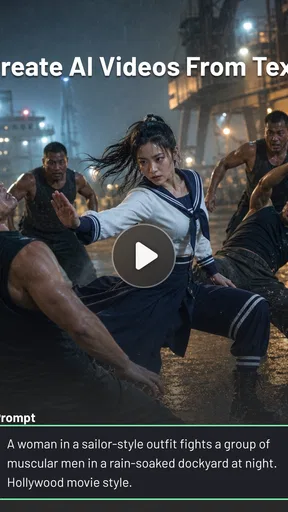
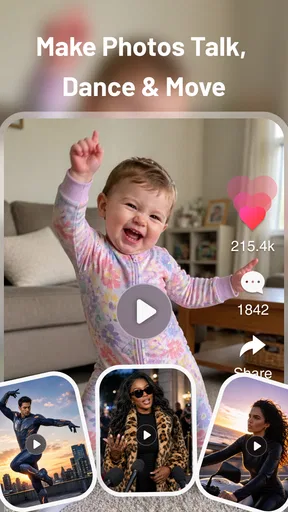
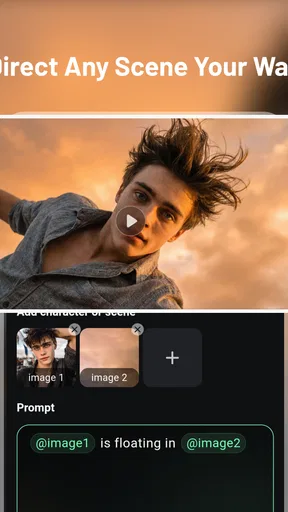
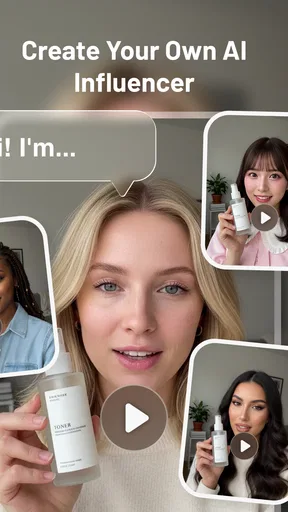
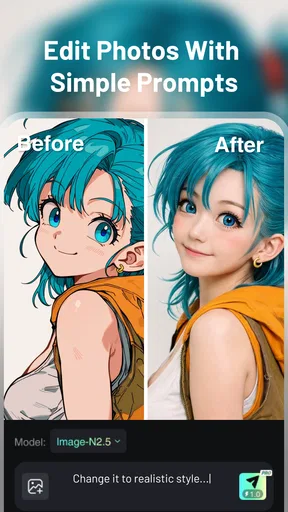
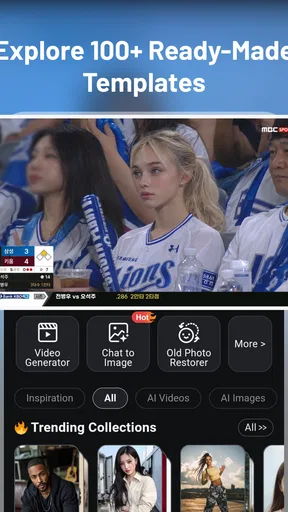
Our Review of Vlog AI: Photo to Video
 Analysis by Appyee
I approached Vlog AI: Photo to Video with a simple goal: turn a still image into something lively enough to share without opening a full video editor. That starting point matters, because this is not trying to replace a complete timeline-based editing suite. It belongs to the art and design side of mobile apps, and its appeal is the short path from an image or idea to an AI-assisted video, dance clip, speaking portrait, or music-backed piece.
After spending time with it, I see the app as a useful shortcut for people who have visual material but not much editing experience. I can imagine using it for a quick social post, a playful birthday greeting, a visual idea for a vlog, or a rough creative experiment. At the same time, I would not treat it as a dependable substitute for careful manual editing. The quality of the final result depends heavily on the source image, the kind of motion requested, and how much control you expect after generation.
The app is free to install, with optional purchases ranging from $2.99 to $59.99 per item. It is made by Fire Elite Team, carries a Teen content rating, and works on Android 8.0 or later. Its current version is 2.1.6, so anyone using an older phone should check compatibility before planning a project around it.
From one image to a shareable video
I find the most useful way to judge a generated clip is to decide what it needs to do before I start: amuse a friend, add motion to a post, or test a visual idea. That gives me a clear standard for whether the result is worth keeping, rather than mistaking a quick preview for a finished edit. With that goal set, I can better assess how the app handles more demanding creative sessions.
Choosing the right starting image
The first important decision happens before I ask the app to generate anything. A clear, well-framed image gives the system a much better starting point than a crowded photograph with several people, strong blur, or a face partly hidden by hair or an object. That is not a minor detail: AI animation has to interpret the subject before it can decide how that subject should move.
For a portrait, I would begin with one person facing the camera and enough space around the head and shoulders. For a product or illustration, I would choose an image with a clean outline and a simple background. If I want a dance-style result, a full-body image makes more sense than a tightly cropped selfie. A useful workflow is to prepare two or three possible source images first, then compare how each one handles the same creative idea.
This is one of the app’s less obvious trade-offs. The convenience is real, but it shifts some of the creative work earlier in the process. Instead of manually building motion frame by frame, I spend more time selecting an image that can survive automated movement. A weak source cannot always be rescued by a clever prompt or template.
Building the first generation
Once the image is selected, I would treat the first generation as a draft rather than a finished video. The app’s focus on AI video and image creation suggests an exploratory workflow: choose an image, select the kind of transformation I want, and see how the system interprets it. The available direction can include an animated dance, a speaking-style video, or a clip designed around music.
That makes the app approachable for beginners because I do not need to understand keyframes, masks, easing curves, or audio tracks before seeing an outcome. It also makes the process less predictable than conventional editing. A manual editor follows my exact instructions; an AI generator makes an interpretation. Sometimes that interpretation feels surprisingly suitable, while other times the movement can look disconnected from the original image.
I recommend keeping the first request simple. One clear action is easier to judge than a complicated combination of movement, mood, camera change, and music. If the initial result is promising, I can then adjust the idea or try a different source. This approach saves time and makes it easier to identify whether the problem comes from the image, the chosen style, or the generated motion.
Using the dance and speaking workflows carefully
The dance-oriented workflow is best suited to playful content where a slightly artificial result is part of the charm. I would use it for a humorous post, a character concept, or a casual message to friends rather than a serious promotional video. Full-body composition becomes especially important here, because an image that cuts off the legs gives the system less visual material to work with.
The speaking-video idea is more sensitive. A face that appears natural in a still photograph may not translate convincingly once the mouth and facial movement are animated. I would choose a front-facing portrait with a visible face and avoid expecting a polished presenter from a casual group photo. This is also the area where viewers are most likely to notice small inconsistencies, so the result should be reviewed before sharing.
For music-backed video, I would think about rhythm and length rather than simply adding sound at the end. A visually simple animation can feel more complete when the motion and audio support each other, but music cannot fix awkward subject movement. The strongest workflow is to decide what the video is trying to communicate first, then use sound as support instead of using it to hide a weak generation.
Managing the handoff from AI creation to personal editing
The handoff between generation and sharing is where my expectations need to stay realistic. An AI-created clip may be visually interesting but still need a human decision: Is the subject recognizable? Does the motion suit the image? Is the timing acceptable? Does the result communicate the intended joke, greeting, or idea without explanation?
I would watch the complete clip several times, once with the sound on and once muted. The muted check reveals whether the visual movement works by itself. The sound-on check shows whether the music adds energy or merely distracts from an unnatural animation. For a speaking result, I would also inspect the mouth and eyes closely rather than judging only the first impression.
This review step is especially important when the source image includes another person. The app is designed for creative transformation, but responsible use still depends on the person creating and sharing the content. I would ask permission before animating someone else’s portrait and would avoid presenting an AI-generated speaking or dancing clip as if it were an authentic recording.
What the finished result is good at
At its best, Vlog AI turns a static visual into a quick piece of content that feels more alive than the original file. That is valuable for people who regularly have photos but struggle to turn them into posts. A travel snapshot can become a short visual update, an illustration can become a motion experiment, and a portrait can become a playful greeting.
The main strength is not fine control; it is momentum. I can move from an idea to a draft without learning a complicated editing interface. For a friend who wants to make something entertaining during a short break, that low barrier is more important than advanced timeline precision.
The result also works well as a concept preview. If I am testing whether a character, photograph, or visual theme has enough energy for a larger project, a generated clip can answer that question quickly. It is not the final production, but it can show whether the idea deserves more time in a traditional editor.
A realistic everyday workflow
Imagine I have a portrait from a friend’s birthday and want to create a short greeting. I would first choose the clearest single-person image, avoiding one with a busy background. I would try a restrained speaking-style transformation or a light celebratory movement rather than asking for an elaborate performance. After generation, I would watch for facial distortion, check whether the mood still feels appropriate, and ask my friend before sharing it.
If the first attempt looks awkward, I would not keep repeating the same request with the same photograph. I would switch to a better-framed image, simplify the intended action, or choose a more playful format where imperfections are less distracting. That is a practical advantage of the app: failed attempts can still teach me which combination of image and style is unsuitable.
For a small creator, the same process could begin with a product photograph or a drawing. The generated clip might serve as a social teaser, but I would add any exact brand wording, pricing, or call to action in a conventional editor afterward. AI generation is useful for motion and atmosphere; it is not the place I would rely on for precise text layout or strict visual consistency.
Where the workflow becomes frustrating
The biggest friction is the gap between a simple request and a consistent result. AI animation can interpret a face, body, object, or illustration in ways I did not intend. A pose may change too much, the subject may lose its identity, or the movement may feel disconnected from the original composition. These problems are not deal-breakers for casual experimentation, but they matter if the video has to look professional.
Another limitation is the reduced control compared with a standard mobile editor. In a conventional app, I can place a cut exactly where I want, adjust a transition, correct a color, or move an audio cue by hand. Here, the creative shortcut is also a control shortcut. If I need repeatable timing or frame-level corrections, I would rather generate a rough idea here and finish it elsewhere.
The free entry point is helpful, but I would pay attention to the purchase flow before making repeated generations. Optional items cost from $2.99 to $59.99, which is a wide range. I would decide in advance how much experimentation is worthwhile and avoid treating every failed attempt as a reason to spend more. The right value depends on whether the app saves me meaningful editing time, not simply on how entertaining the first result is.
Storage and sharing habits also deserve thought. Generated videos can accumulate quickly, especially when I save several variations of the same image. I would keep only the strongest draft, label the source image, and remove abandoned experiments. That simple organization prevents a creative test from becoming a confusing collection of near-identical clips.
Who should use it, and who should choose something else
I would recommend this app to beginners, casual creators, social-media users, and anyone curious about turning photographs into short AI-assisted videos. It is particularly suitable when speed and novelty matter more than exact control. The Teen rating also signals that it is not intended as a children’s creative space, so parents should consider that before handing it to younger users.
I would be more cautious about recommending it to professional editors, agencies, educators who need predictable results, or creators working with strict brand guidelines. Those users may prefer a conventional editor for the final stage, or another specialized tool when they need detailed animation control, reliable lip synchronization, layered audio, or repeatable characters.
Compared with a normal photo editor, Vlog AI offers more movement and less certainty. Compared with a full video editor, it offers a faster start and fewer manual decisions. Compared with making a video from scratch, it removes much of the technical barrier but also gives me less ownership over every frame. That is the clearest way to understand its place: it is a creative accelerator, not a complete production desk.
My final take on the creative shortcut
Vlog AI: Photo to Video is most enjoyable when I use it as a fast idea generator. I bring a strong image, ask for a focused transformation, inspect the result honestly, and then decide whether it is ready to share or needs conventional editing. That workflow keeps the app’s convenience while avoiding the disappointment of expecting professional precision from an automated tool.
Fire Elite Team has positioned the app in an accessible space: AI-assisted video and image creation for people who want visible results without a long tutorial. With an average rating of 3.9 from around 4.6 thousand ratings and more than 100 thousand installs, it has attracted a meaningful early audience, although those figures alone do not guarantee that every generation will suit every phone or image.
My recommendation is positive but specific. Try it if you want playful motion from still images, quick dance or speaking experiments, or a starting point for a short vlog-style idea. Skip it if your priority is precise editing, dependable realism, or complete control over audio and timing. Used with good source images, careful review, and sensible expectations, it can turn a forgotten photo into a surprisingly usable piece of visual content.
Verdict
Strengths of Vlog AI: Photo to Video
- Turns still photos into engaging videos with minimal editing effort.
- AI effects can add motion and personality to otherwise static images.
- Useful templates help create content quickly for social media.
- Simple interface makes it approachable for beginners.
- Supports creative storytelling without requiring advanced video skills.
Limitations of Vlog AI: Photo to Video
- AI-generated motion may look unnatural on some photos.
- The best templates and effects may require a paid subscription.
- Results can vary greatly depending on image quality and composition.
- Export options may be limited by resolution, format, or watermark rules.
- Processing effects can take longer on older or less powerful devices.
Other Releases by Fire Elite Team
View All
HomeGPT: AI Interior Design
House & Home4.2
Similar Picks in This Category
View All
Canva: AI Photo & Video Editor
Canva4.8

PENUP – Drawing-sharing SNS
Samsung Electronics Co., Ltd.4.5

Crafto
Kutumb App4.6

Sketchbook
Sketchbook4.1

ibis Paint X
ibis inc.4.5

Adobe Express: AI Photo, Video
Adobe4.6
Frequently Asked Questions
What is Vlog AI: Photo to Video and what can I use it for?
Vlog AI: Photo to Video is a mobile editing app designed to turn still photos into short, animated video clips. It can be useful for creating social media posts, slideshow-style memories, travel recaps, birthday greetings, and promotional content. Depending on the available tools, users may be able to combine images with music, transitions, effects, text, and AI-powered motion or animation features.
How does Vlog AI: Photo to Video create videos from photos?
The app generally works by allowing you to select one or more images from your device, arrange them in a sequence, and apply a chosen template, transition, soundtrack, or animation effect. Its AI-focused features may add movement to images or help generate a more dynamic presentation. The final result depends on the quality of your photos, the selected style, and the customization options available in the current version.
Is Vlog AI: Photo to Video free to download and use?
The application may be available to download at no initial cost, but some features can be restricted behind in-app purchases, subscriptions, premium templates, or export limitations. Before creating a large project, check the app-store listing and the payment screen carefully to understand what is included in the free version. Also review subscription terms, renewal conditions, and whether exported videos include advertising or a watermark.
Can I add music, text, filters, and other effects to my videos?
Photo-to-video applications commonly provide editing tools such as background music, captions, stickers, filters, transitions, visual effects, and adjustable clip timing. Vlog AI: Photo to Video is intended for this type of creative workflow, although the exact tools may vary by device, region, and app update. If you plan to publish content commercially, verify that any included music, images, fonts, or templates are licensed for your intended use.
Does Vlog AI: Photo to Video require internet access, and is my content private?
Basic editing may work on the device, but AI processing, template downloads, cloud rendering, advertisements, or account-related features may require an internet connection. Privacy can also depend on whether photos are processed locally or uploaded to remote servers. Before granting access, read the app’s permissions and privacy policy, especially if you intend to use personal, family, or confidential images. Avoid uploading sensitive content unless you understand how it is handled.
